Inviting users
You can invite tenants, owners, and repairers to connect their FixMate Reporter account to a specific unit or property. This makes reporting and communication simple.
Invited users will receive an email with a unique registration link. They can use this link to create a FixMate Reporter account (if they don't already have one) and connect their account to the correct unit.
How to send user invitations
You may invite users to connect at the Property level or the Unit level.
- Select the property address on the Properties page. If desired, select a specific unit.
- Select the Manage Users tab, then click the Invite user icon in the lower right corner.
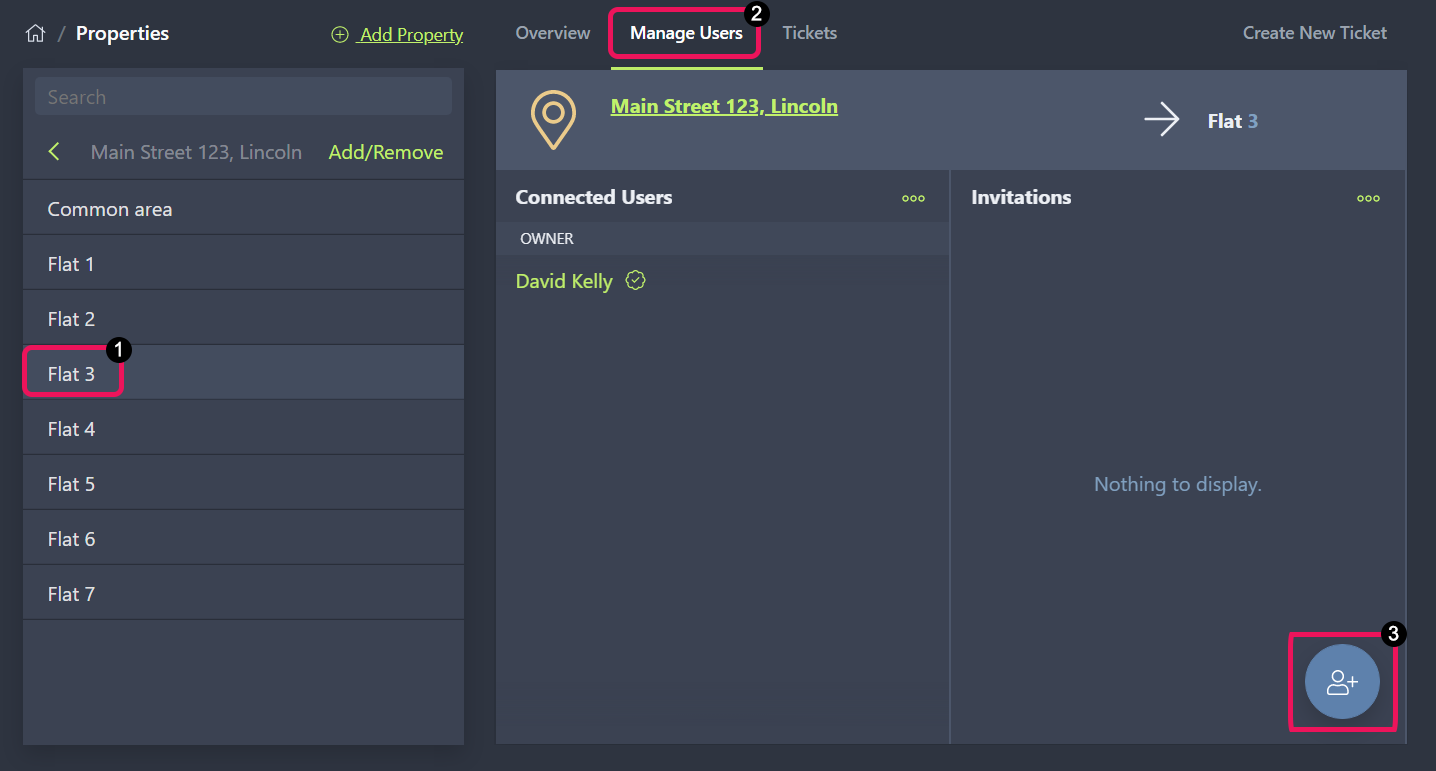
- Enter the person's email, name, relationship to the property, and any additional information. Click Send to send the invitation email.
- Repeat the procedure for all users to be connected to the property or unit.
Resend an invitation
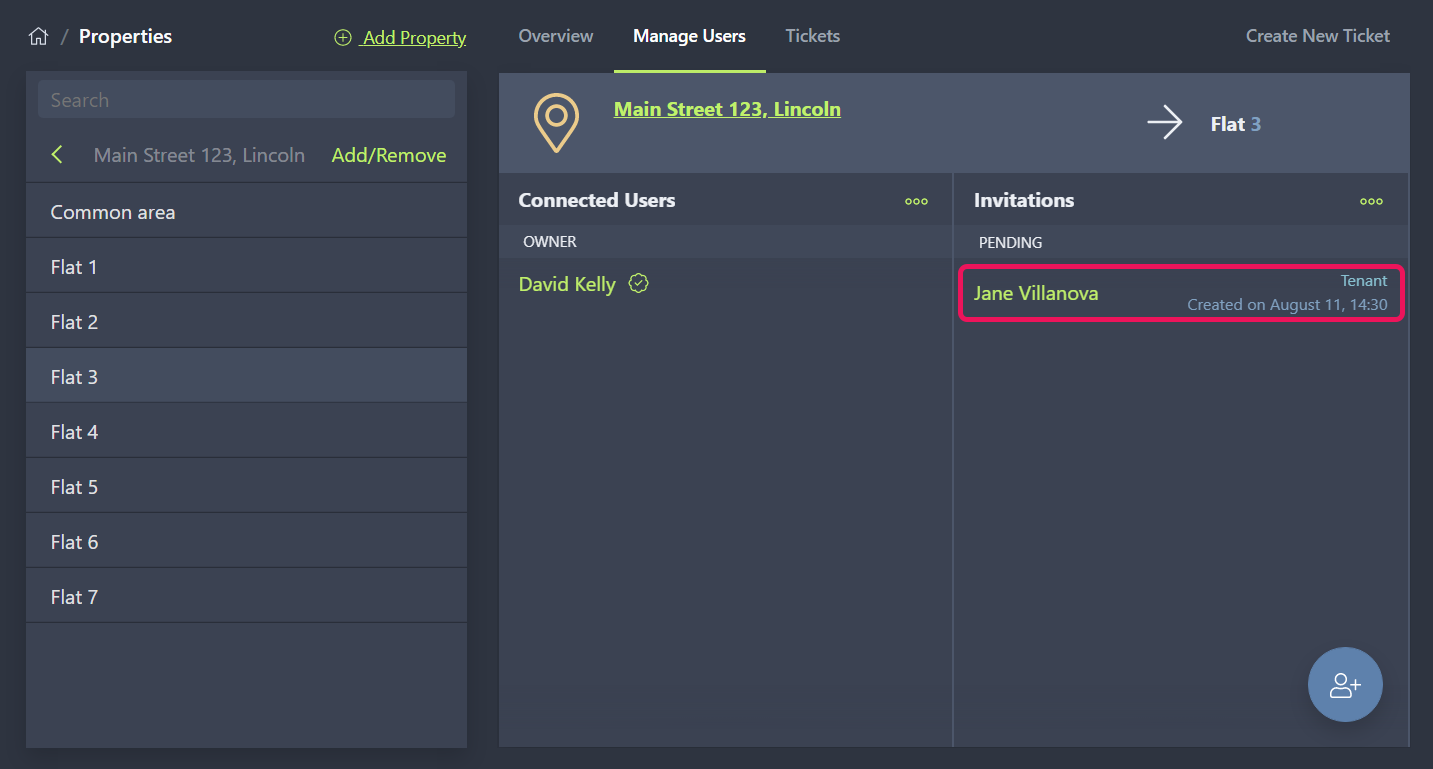
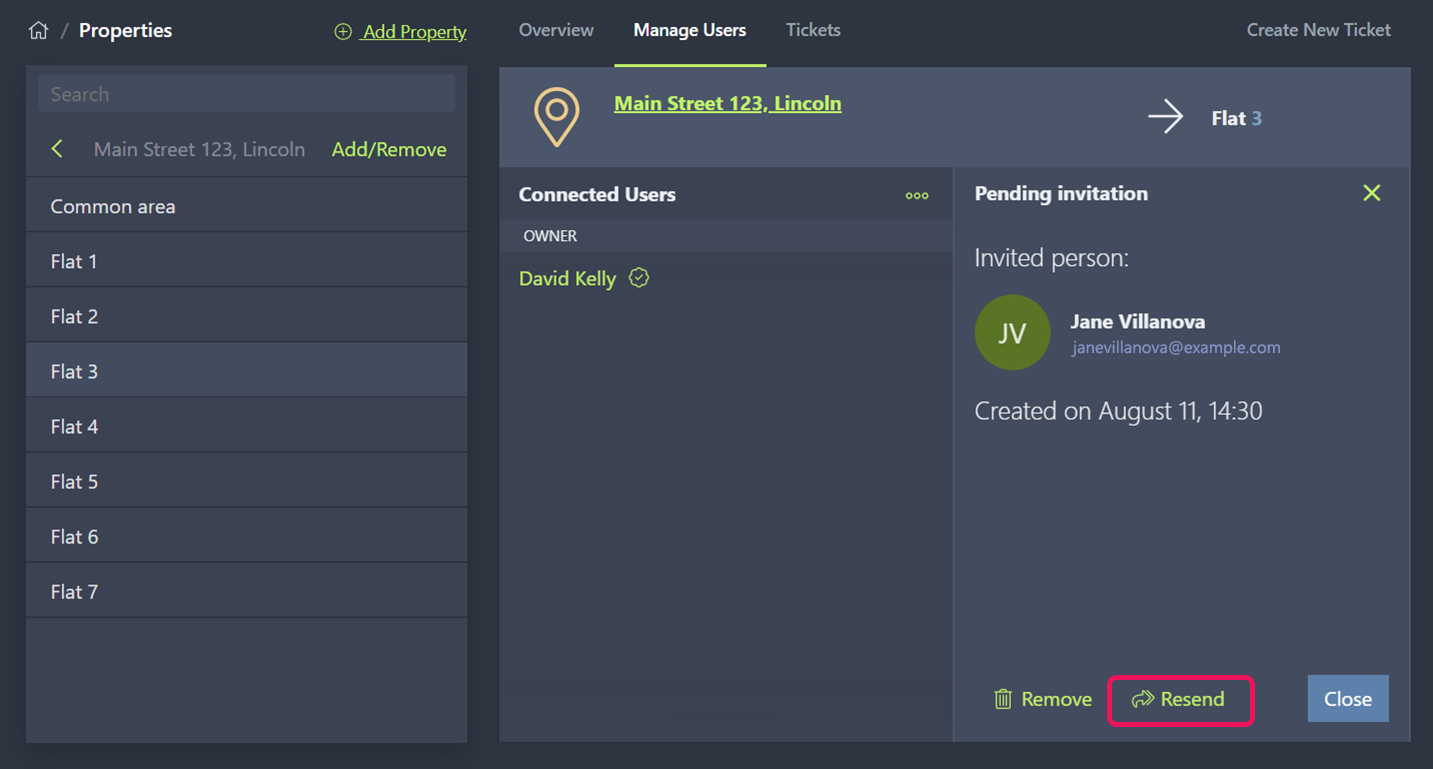
You can see a list of all sent invitations on the right panel of the Manage Users tab. For pending invitations which haven't yet been accepted, you may resend the invitation.
- Select the user's name in the list of pending invitations.
- Click Resend. The invitation email will be sent to the recipient again.
Delete an invitation
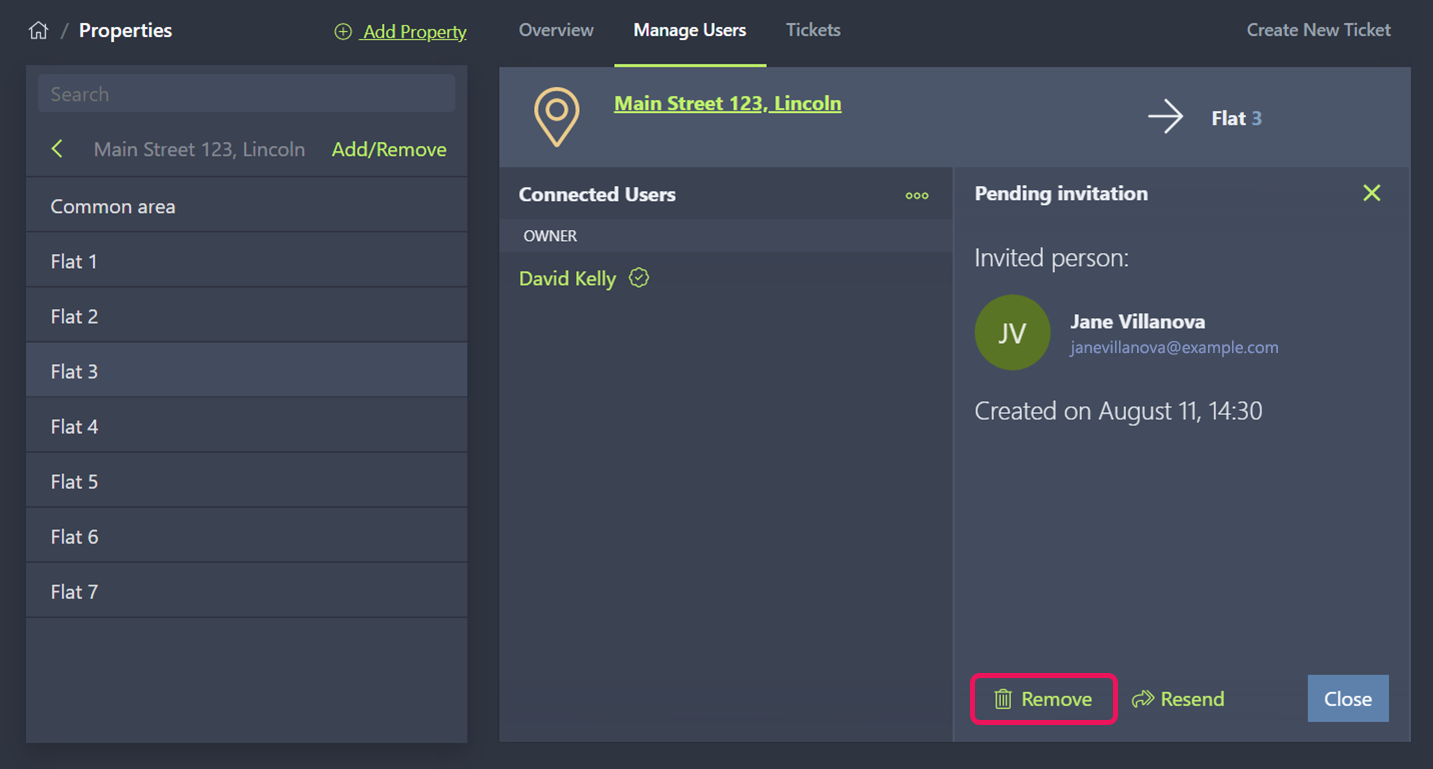
You may delete pending invitations which have not yet been accepted. Deleting an invitation will disable the registration link associated with the invitation.
To delete a pending invitation:
- Select the user's name in the list of pending invitations.
- Click Remove.
Archive an accepted invitation
Once an invitation has been accepted, the user's name will appear on the Connected Users panel. The user also appears on the accepted invitations list. To clean up the list, simply select the user's name in the invitation list and click Archive. This will remove the invitation from the list, but the user still appears on the Connected Users panel.