Managing users
User roles
By default, different user roles have different viewing permissions within FixMate. All users can report and track issues and communicate with management.
Tenant - sees only tickets which they have created.
Owner - sees all tickets for properties they own as well as tickets they have created. Sees statistics and reports for their properties.
Repairer - sees tickets they have created as well as tickets assigned to them by management.
View connected users
You can see a list of all users who have been connected to a unit.
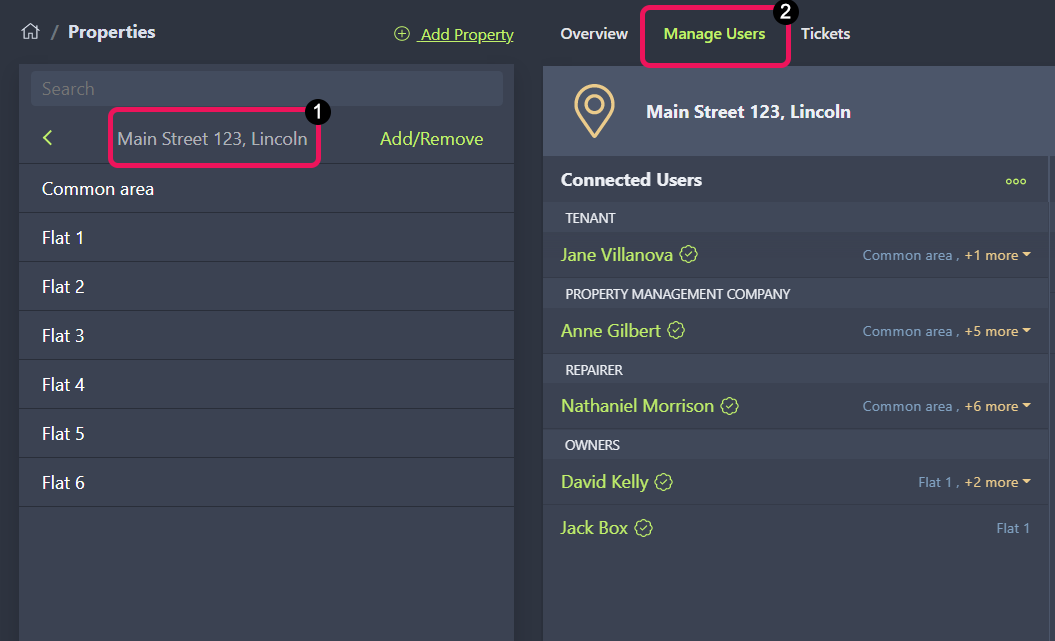
- Select a property on the Properties page. Optionally, select a specific unit.
- Select the Manage Users tab.
- You'll see a list of users and their relationship to the unit (tenant, owner, etc.). Select a user to view their contact information or edit the user settings.
Change a user's relationship to a unit
- Select the property address on the Properties page. Optionally, select a specific unit.
- Select the Manage Users tab.
- Select the user's name.
- Choose a user role from the list and make sure the "Verified" button is toggled on.
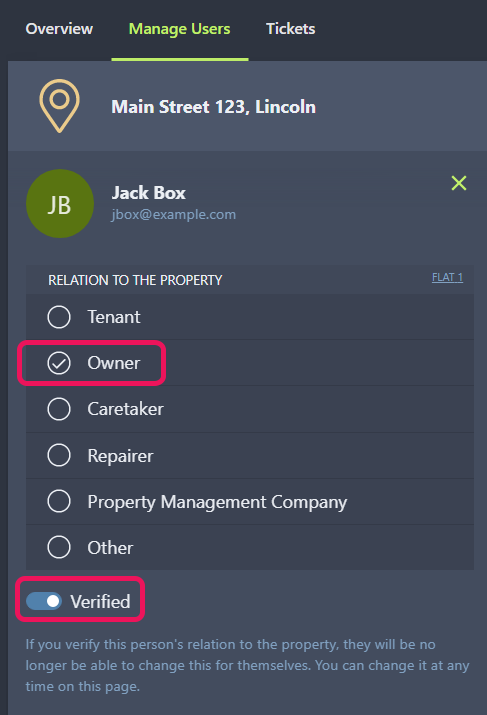
Note: A user can only have one role per unit.
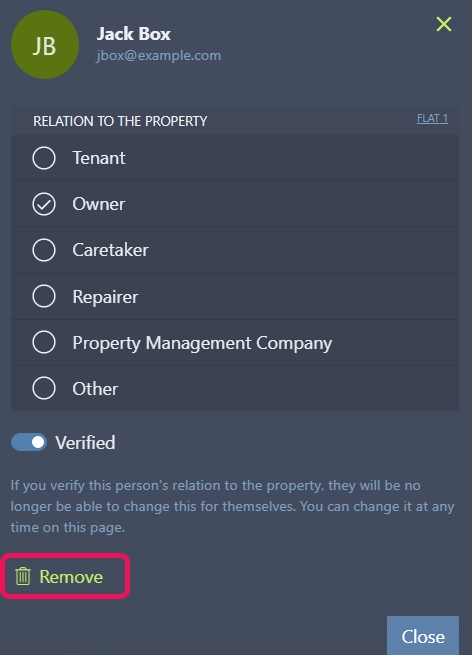
Remove a user
- Select the property address on the Properties page. Optionally, select a specific unit.
- Select the Manage Users tab.
- Select the user's name.
- Click Remove. This will unlink the user from the unit and they will no longer appear on the list. To re-connect them, you'll need to send a new invitation.