Managing tickets
When a tenant or another person submits a new maintenance ticket, you’ll receive a notification at the email address associated with your management account.
You can see the new ticket on the Tickets page as well as on the Dashboard. Click on a ticket to see the ticket details and manage the ticket.
The ticket details page
Clicking on a ticket will open the ticket details page.
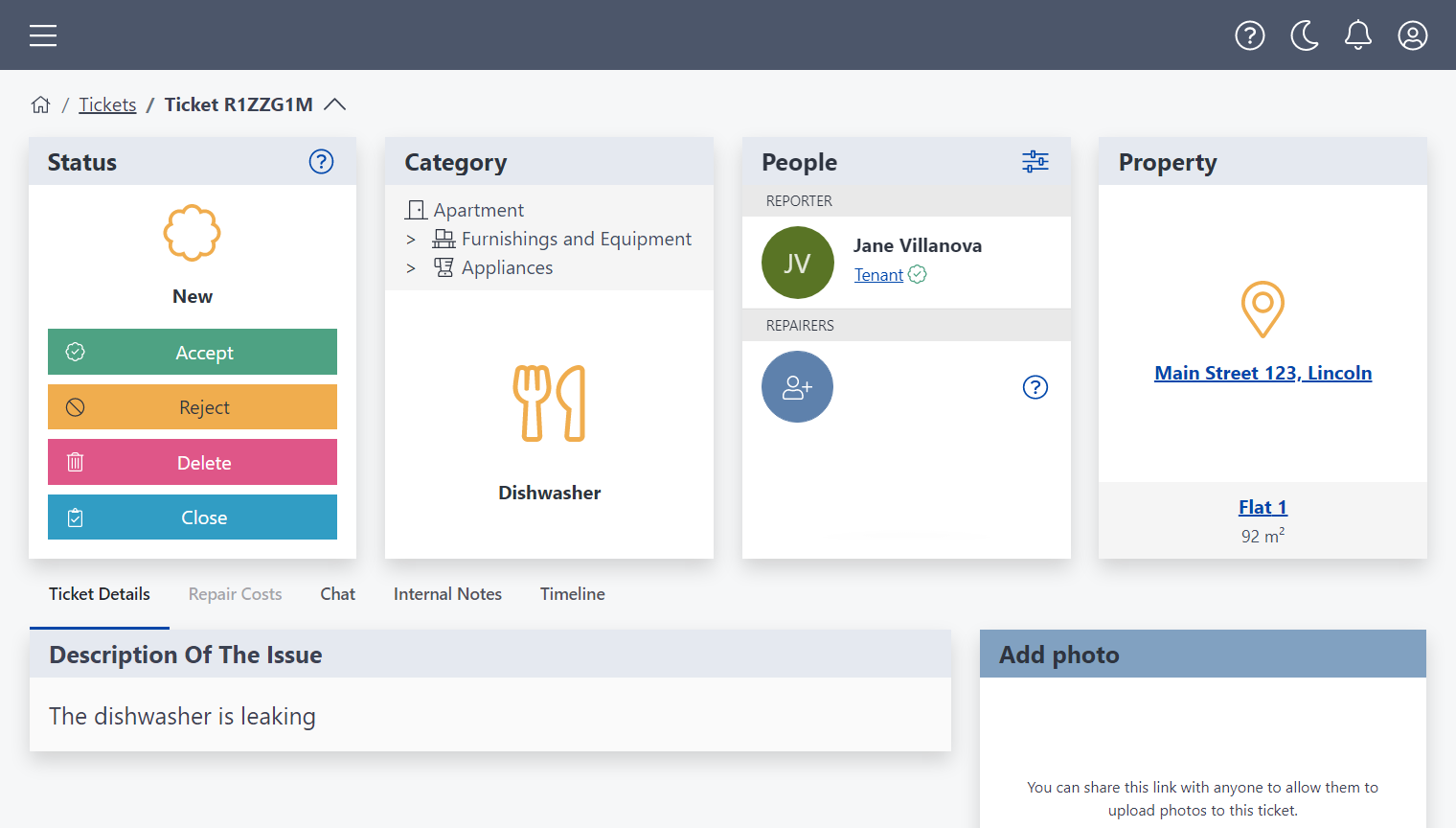
The ticket details page features 4 panels at the top.
- Status: view and change the ticket status.
- Category: view the category and type of the issue.
- People: see who reported the ticket and any other people connected to the property.
- Property: see the property address and unit name.
Ticket status
As you process a ticket, update the ticket’s status to reflect its current state. This enables you to keep everyone informed and to easily see what needs to be worked on.
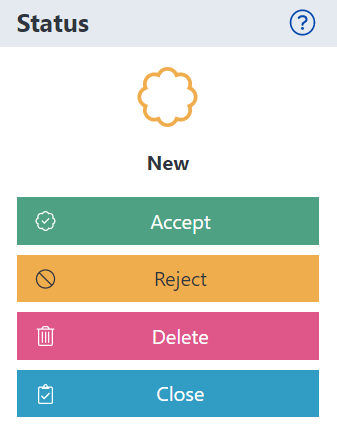
New - When a reporter submits a ticket, its status is New. You can choose to accept, reject, delete, or close the ticket.
- Accept - you must accept a ticket in order to process it.
- Reject - the request will not be processed, and the user who submitted the ticket will be notified. If you change your mind later, you can still choose to accept the ticket.
- Delete - for spam or inappropriate requests. Deleted tickets will not be archived and the reporter will not be notified.
- Close - if the issue has already been resolved, you may choose to close the ticket. The user who submitted the ticket will be notified.
Accepted - Once you have accepted a ticket, you can send messages to the reporter, estimate the repair costs, add photos, and schedule a repair.
Waiting for Approval - If you send the repair costs to the payer for approval (optional), the payer will get a notification asking them to approve the costs.
Approved - The payer has approved the cost and you can now schedule a repair. You may contact the ticket reporter using our in-app messaging system to confirm the date of the repair.
Scheduled - As soon as you have scheduled the maintenance, the reporter will be notified of the time and date of the scheduled repair.
Completed - The maintenance for the ticket has been completed.
Closed - The ticket has been closed and archived for future reference. You can close a ticket at any time.
Change a reporter’s relationship to the property
A reporter is usually the tenant, owner, or repairer.
The person’s relationship to the property appears under their name on the People panel of the Ticket details page.
As a manager, you can change or verify this person’s relationship to the property. To change the reporter’s relationship to the property, click the link below the reporter's name.
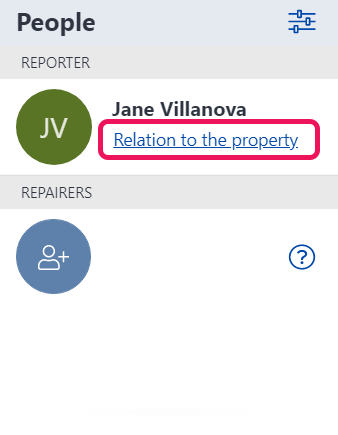
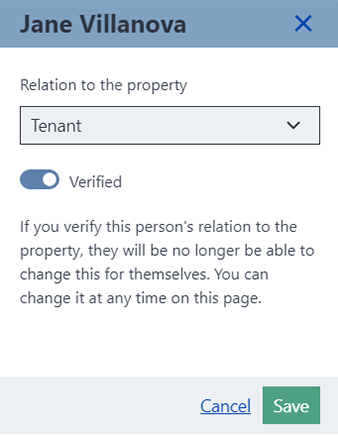
Specify the reporter’s role (tenant, owner, etc.) and make sure it is set as Verified. Once a user is verified, they can no longer change the relationship on their own. Click Save.
You can also change a user's relationship to the property from the Manage Users section of the Properties page.
Change the designated reporter
The name of the person who reported the ticket appears on the People panel.
The reporter can:
- add photos
- track the ticket status
- communicate with you via the Chat system
You may wish to change the designated reporter. To re-assign the ticket to a different person:
- Click the settings icon on the People panel. This shows a list of the users associated with the unit.
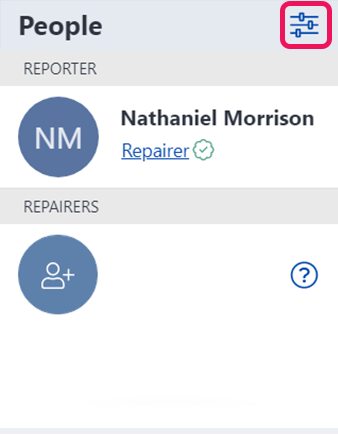
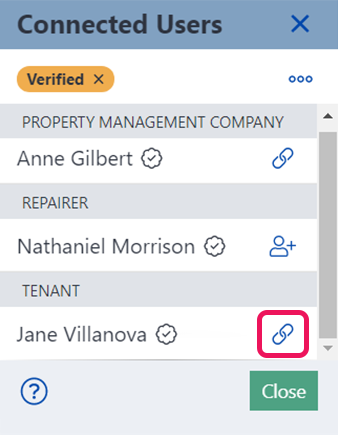
- Click the link icon next to a user’s name to designate them as the reporter for this ticket. This user is now the designated reporter and will receive notification of any ticket status changes or messages.
Assigning a repairer
You may assign one or more repairers to a ticket. An assigned repairer can view the ticket details and photos. They can also start a new chat thread or be added to a thread.
To assign a repairer to a ticket:
- Go to the People panel of the ticket details page.
- Click the add user icon and select the repairer's name. The repairer will receive an email notification informing them of this assignment.
You may remove a repairer from a ticket at any time. If removed, a repairer will no longer have access to the ticket details, photos, or messages.
Note: You may only assign a repairer whose account is connected to the property in question. To invite someone to connect to the property, see Inviting Users.
Using the Chat feature
The Chat feature enables you to message the reporter, repairer, owner, or other person connected to the property.
- Select the Chat tab.
- Select an existing thread or create a new one. You may create a group chat by adding multiple users to a thread.
- Write and send your message. The recipient(s) will receive an email notification and can reply to the message from within the FixMate Reporter app.
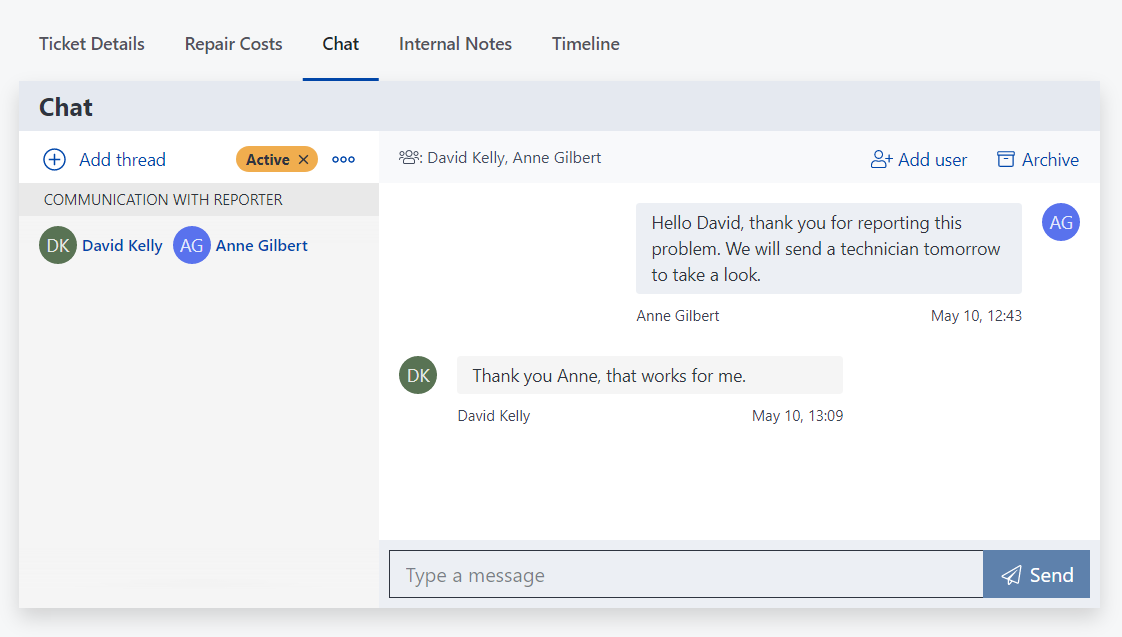
Note: You can only message a person whose FixMate account is connected to the property in question. To invite someone to connect to a property, see Inviting Users.
Specify the repair costs
If needed, you can specify the costs of the repair and send them to the payer (tenant/resident or owner) for approval.
- Select the Repair Costs tab on the ticket details page.
- Enter the total price of the repair costs. The default currency is the currency associated with your account. If you’d like to change the currency, click Detailed calculation.
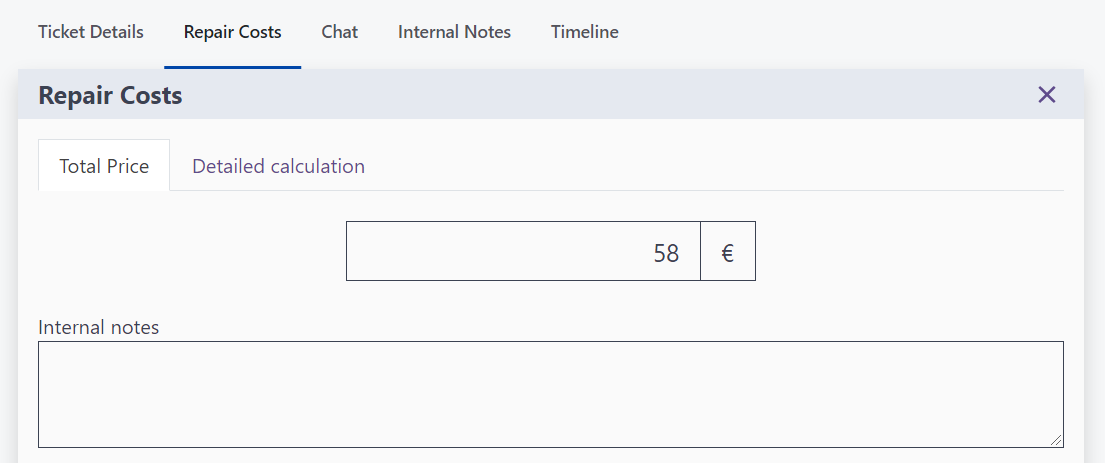
- Select the party who is responsible for the cost of the repair - tenant, owner, management company, or other.
- If there is one verified tenant or owner associated with the property, their name will be automatically selected. You can also choose to fill in the contact details of another person.
- If there is more than one verified tenant or owner associated with the property, you can select their name from the dropdown list.
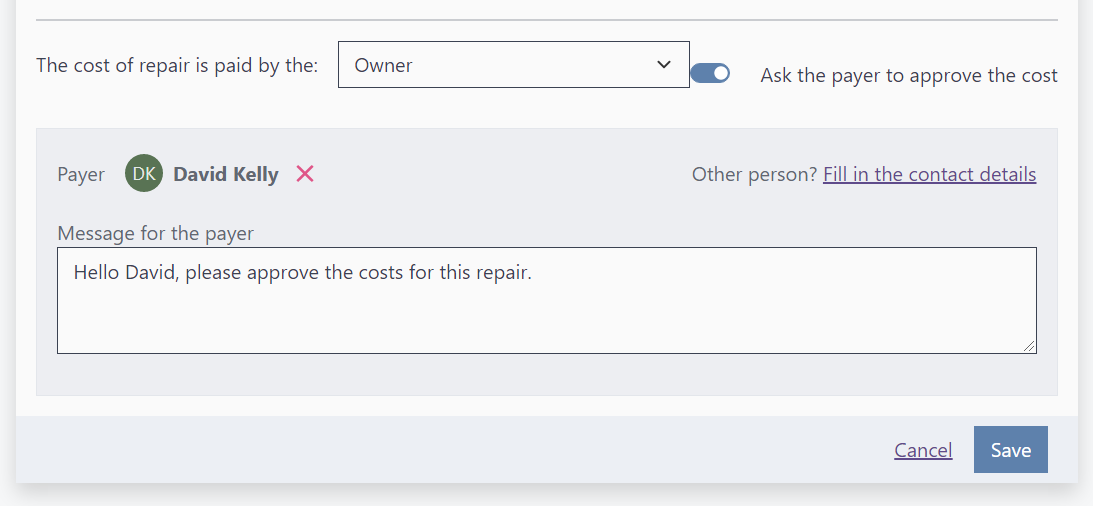
Click Save. You will see an overview of the repair costs. If you need to make any adjustments, click the settings icon.
To send the costs of repair to the payer for approval, click Send for approval. The designated payer will receive an email notification and will be prompted to approve the repair costs through the FixMate Reporter app.
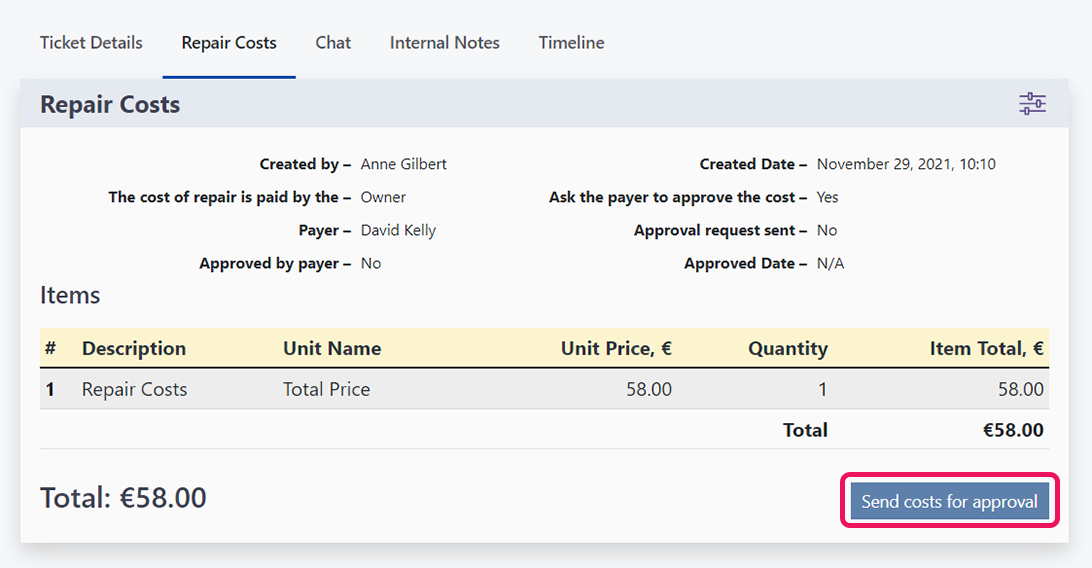
Sending the costs for approval is optional. You may schedule a repair for the ticket at any time by changing the ticket status.
Schedule a repair
In the Status panel, click Schedule a repair.
Select the date and time of the repair and click Send.
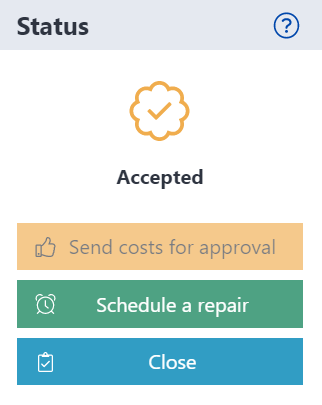
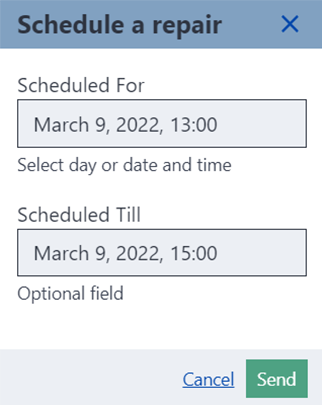
The reporter will receive an email notification and this event will appear on your Dashboard calendar.
Add internal notes
To add notes for yourself and other members of the management team, click the Internal Notes tab and type your note.
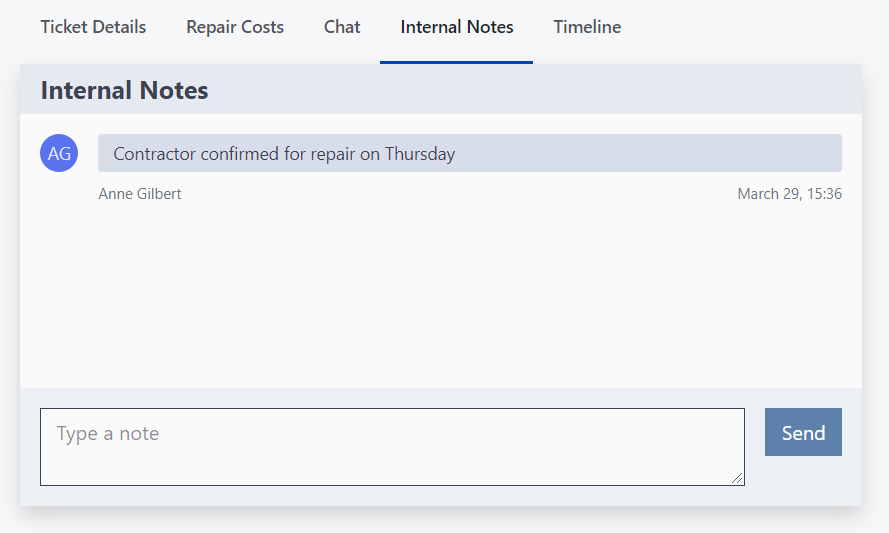
Internal notes will be viewable by any member of the management team who has access to the FixMate Management application.
Upload additional photos to a ticket
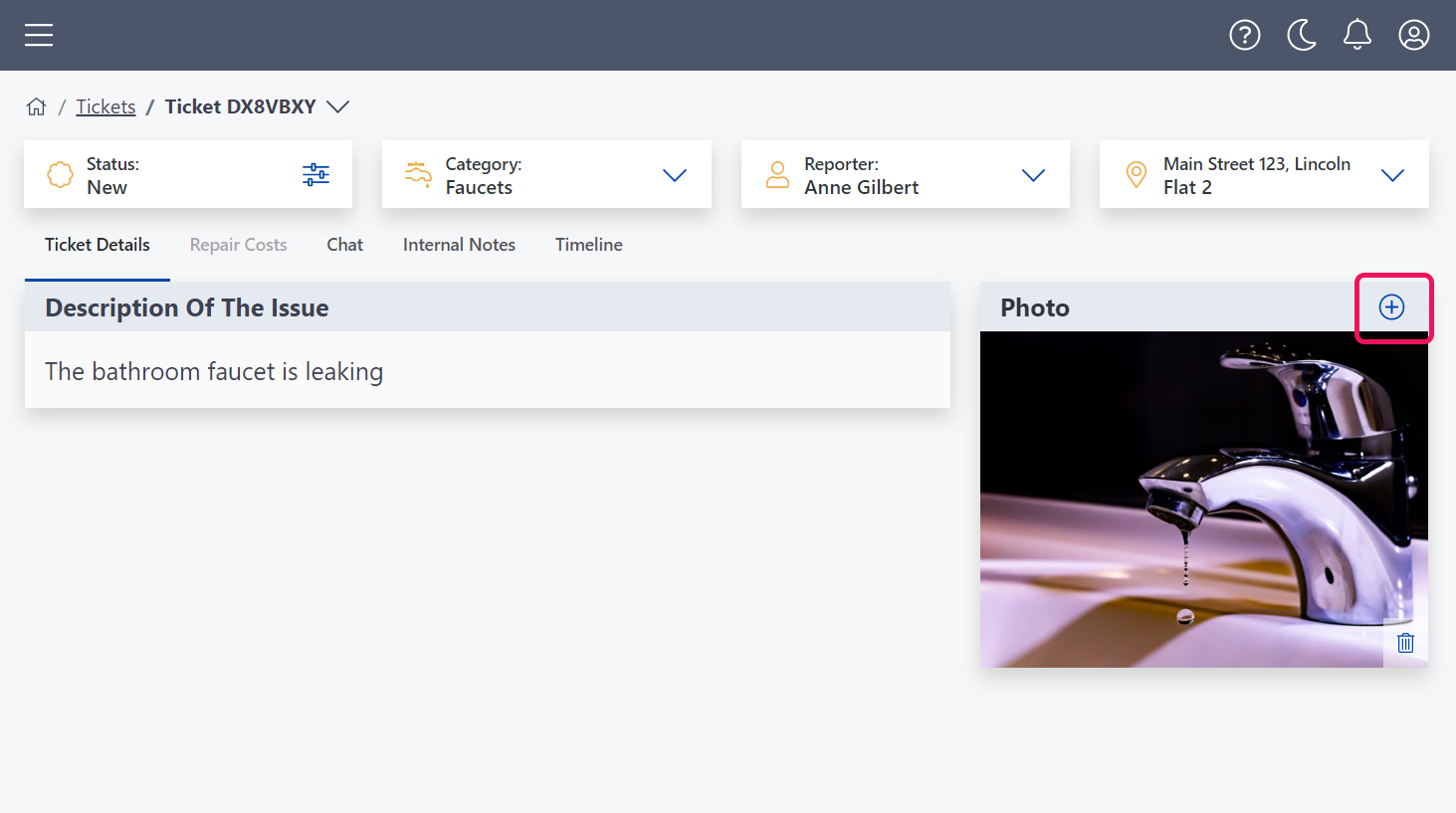
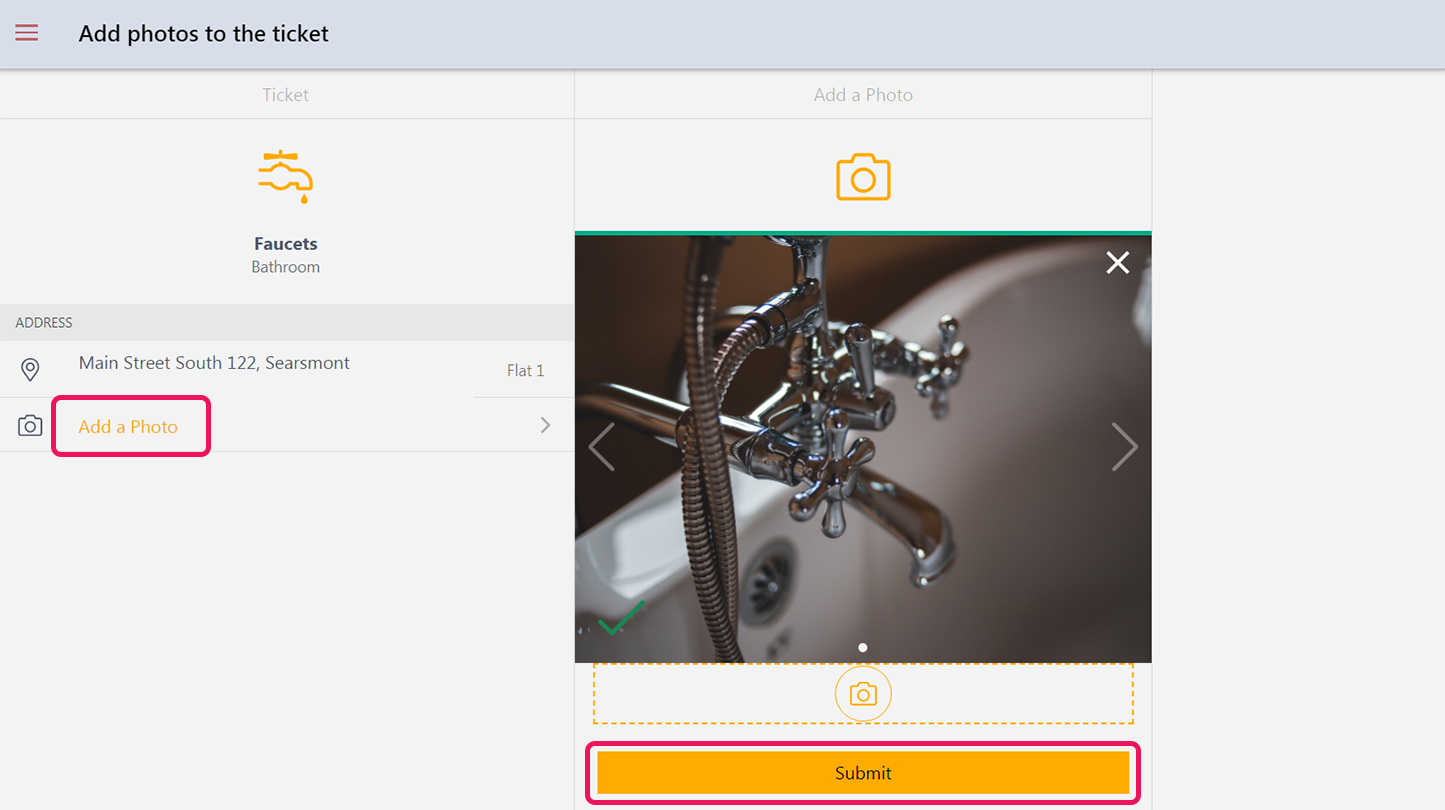
You can upload photos to a ticket at any time. Photos which have been added to the ticket appear in the Photos panel of the Ticket Details tab. By default they are visible only to managers. To share them with other users, you can send them via Chat.
- To add additional photos to a ticket, click the plus sign above the photo.
- Click Open link in new tab.
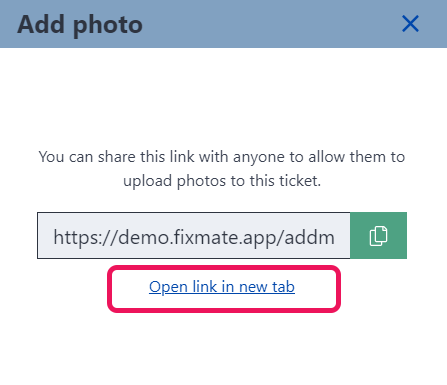
- Click Add a Photo, then drag and drop a photo to the image pane or click the camera icon to select a file from your computer. Click Submit.
Sharing photos
When you assign a reporter or repairer to a ticket, they will be able to view any original photos which were uploaded when the ticket was created.
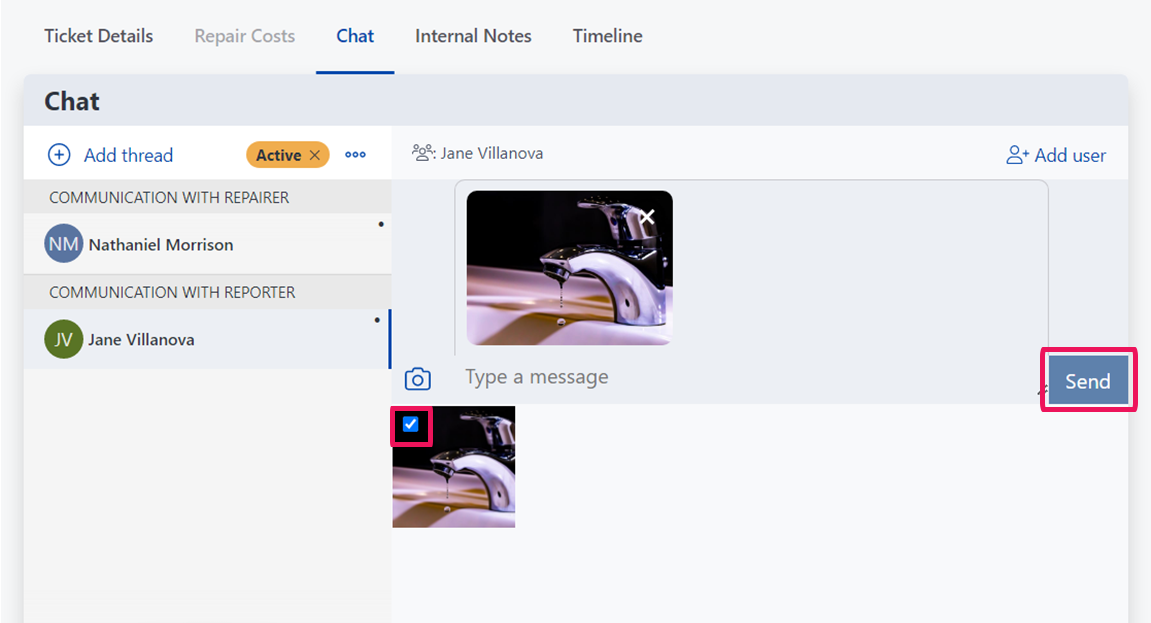
For photos added to the ticket later, you can share them via Chat:
- Open a chat thread with one of the connected users.
- Click the camera icon.
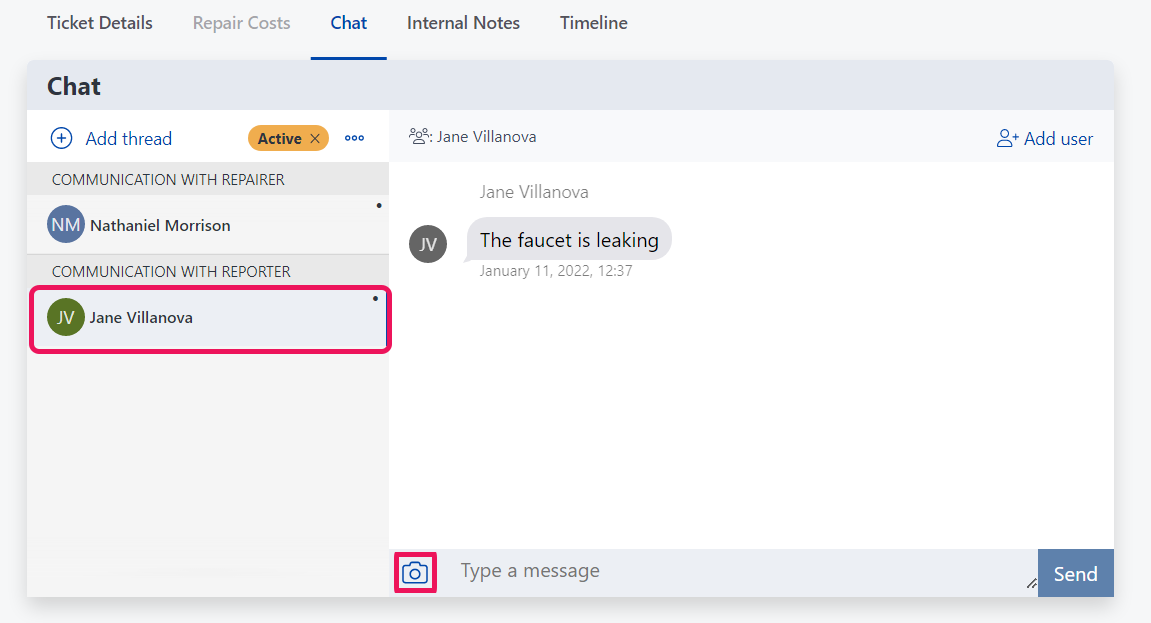
- Choose a photo, add a comment if desired, and click Send.
Send a link to another party to add photos
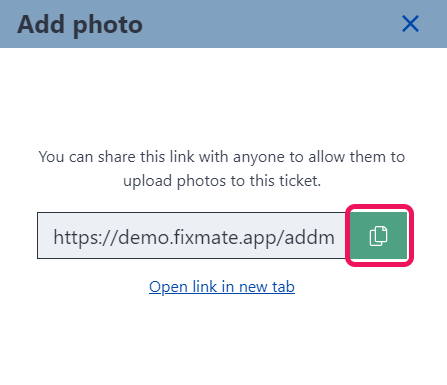
From the Photos panel, copy the link and send it to the maintenance professional or other person who needs to add photos to the ticket. Using this link, anyone can upload photos to the ticket.