Creating maintenance tickets
There are two main ways to create a maintenance ticket: through the FixMate Reporter app or the FixMate Management application.
Create a ticket using FixMate Reporter
This is the best solution for when you’re on the go.
By using a QR code:
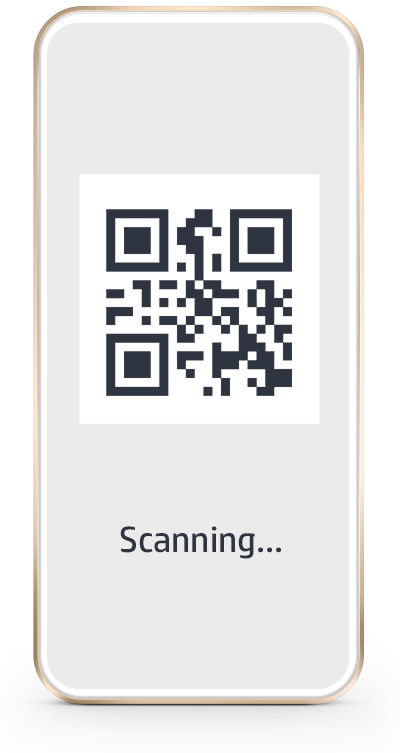
- Scan the nearest FixMate QR code using your mobile device, and a ticket will be generated with the address and unit information pre-filled.
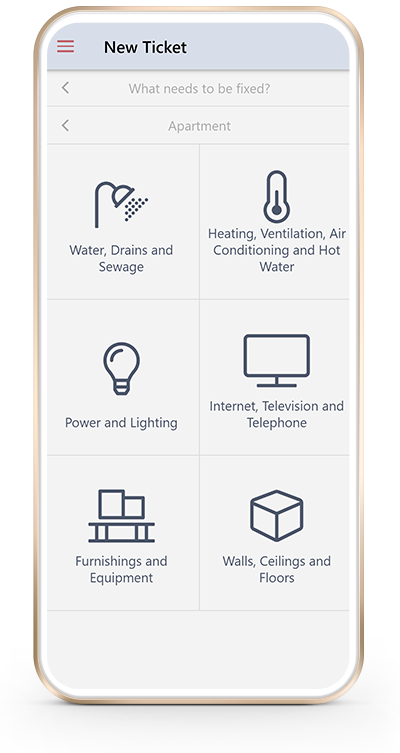
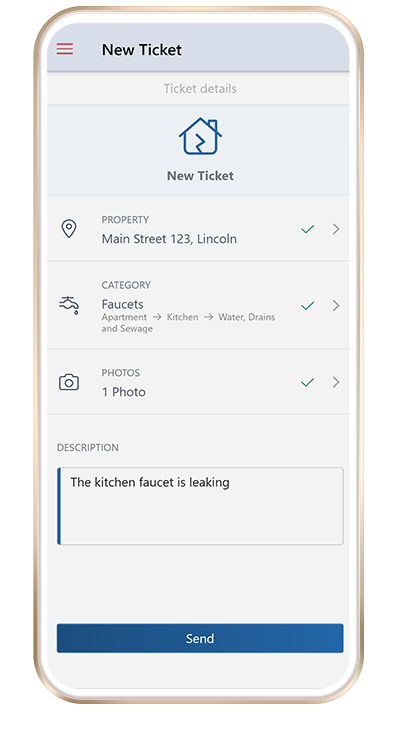
- Select the category of the problem, add a photo, and write a description of the issue.
- Submit the ticket. You’ll see a confirmation message that the ticket was received.
Create a ticket for a registered property:
Properties registered in FixMate Management will automatically appear in the FixMate Reporter app when you log in with the same account.
- Log in to your FixMate account and select an address from the dropdown list. You may also select a unit.
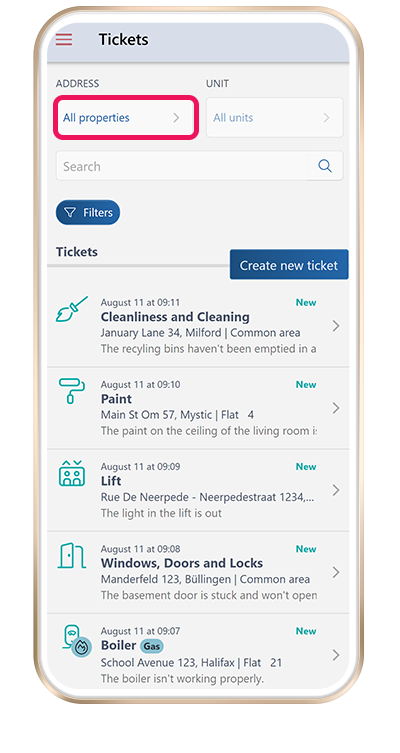
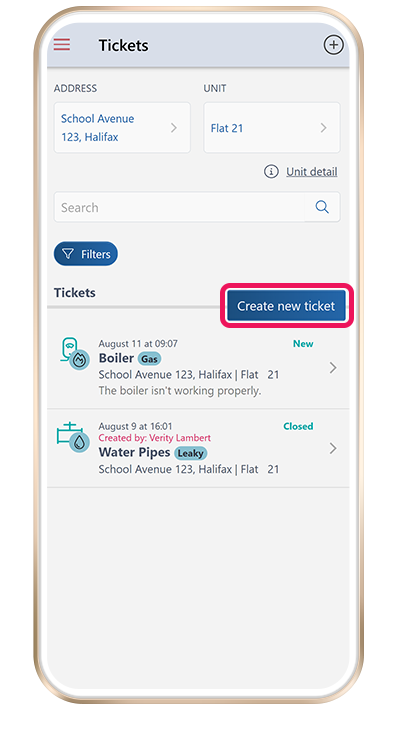
- Tap Create new ticket.
- Continue filling in the ticket details and submit the ticket.
By entering the address manually:
- Open the FixMate web app by navigating to fixmate.app in your mobile device’s browser.
- Log in to your FixMate account and select New Ticket from the menu.
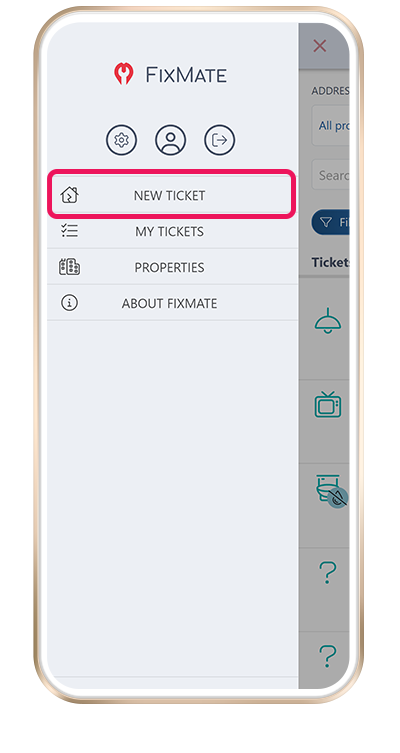
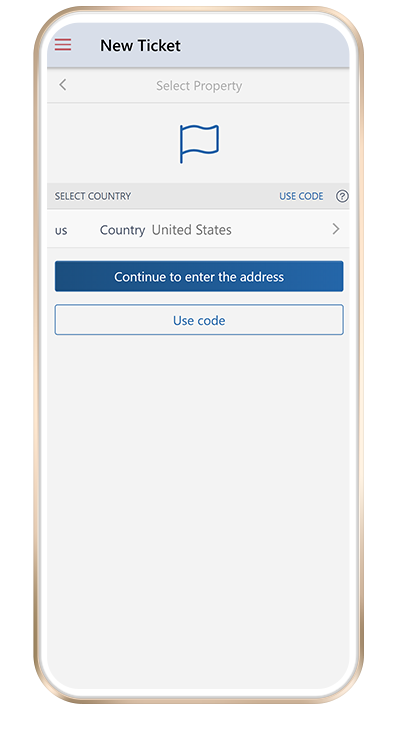
- Tap Select Property and enter the property address. Make sure that the property address is one which is already registered within the FixMate system, otherwise the ticket will not be received.
- Tip: if you know the unit ID code (printed next to the QR code) you can enter it here.
- Select the category of the problem, add a photo, and write a description of the issue.
- Submit the ticket. You’ll see a confirmation message that the ticket was received.
Note: you will be listed as the reporter of the ticket. If you’d like to change the reporter (to the tenant or owner, for example), you can do so from the ticket details page within FixMate Management.
Create a ticket using FixMate Management
You can create a ticket from your computer or tablet using the FixMate Management application.
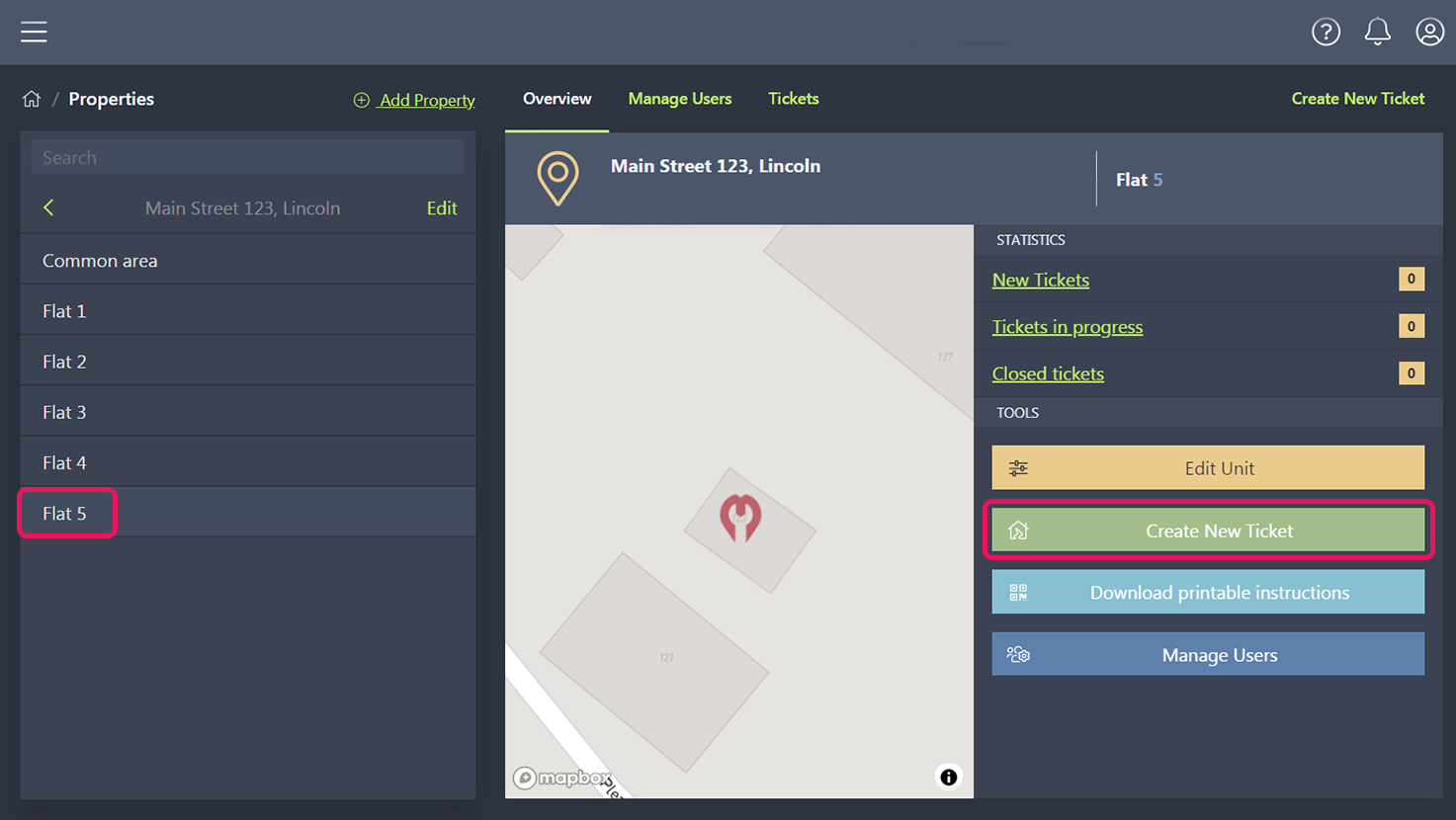
- On the Properties page, select the property and unit for which you want to create a ticket.
- Click Create New Ticket.
Select the type and location of the problem.
Write a description of the issue and click Save.
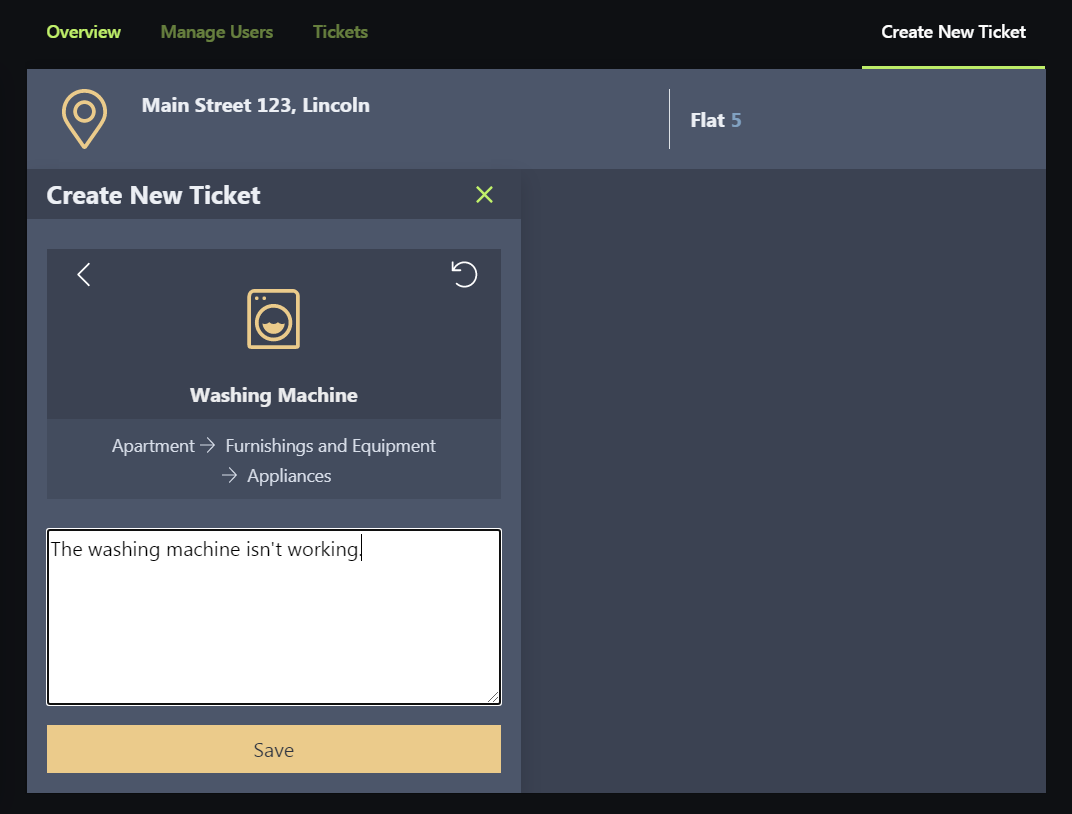
The new ticket will appear immediately on the Tickets page. To manage the ticket or to add photos, click on the ticket to open the ticket details page.
Note: you will be listed as the reporter of the ticket. If you’d like to change the reporter (to the tenant or owner, for example), you can do so from the ticket details page.